Building a React-Like Component System with Server-Side Rendering in NestJS
Introduction
What This Guide Will Teach You
Is This Guide Right for You?
Why Server-Side Rendering Still Matters
Use Cases Where SSR Excels
The Traditional SSR Problem
Our Solution: Backend Components
Technology Stack
Architecture Overview
Request Flow
Key Design Decisions
Step-by-Step Implementation
Running the Application
Advanced Patterns
Comparison with React
Performance Considerations
Security Best Practices
Troubleshooting
Conclusion
Next Steps
Further Reading
Acknowledgement
Introduction
Modern web development often presents a critical architectural choice: client-side rendering (CSR) or server-side rendering (SSR).
CSR frameworks like React excel at building highly interactive, component-based user interfaces. However, for use cases such as authentication flows, admin dashboards, and security-sensitive applications, server-side rendering offers clear advantages, improved performance, better SEO, and stronger control over data exposure.
The challenge is that moving to SSR often means sacrificing the component-driven development model that makes React so productive. Developers frequently end up writing repetitive templates, manually managing CSS classes, and duplicating UI logic between backend-rendered views and frontend components.
This article introduces a practical solution: a React-like component system built entirely on the server, using NestJS, Handlebars, and Tailwind CSS.
What This Guide Will Teach You
By the end of this guide, you’ll understand how to design and implement a React-like component system for server-side rendering using NestJS.
You’ll learn how to:
- build reusable, composable UI components on the backend,
- manage component variants with Class Variance Authority (CVA) in server-rendered templates,
- integrate Tailwind CSS v4 with NestJS and Fastify,
- build an interactive, server-rendered authentication flow and dashboard,
- and make informed decisions about when to use server-side rendering versus client-side rendering.
Is This Guide Right for You?
This guide is designed for developers who:
- Love the React component model, but need SSR for specific use cases
- Work with NestJS and want to improve their template-based UI development
- Need server-rendered authentication or admin interfaces
- Want to avoid duplicating UI logic between backend and frontend
You should be comfortable with:
- Basic NestJS concepts (modules, controllers, decorators)
- TypeScript fundamentals
- High-level understanding of server-side rendering
- Basic HTML templating concepts
Why Server-Side Rendering Still Matters
Before diving into implementation, let’s understand when and why SSR is the right choice.
Use Cases Where SSR Excels
- Authentication Flows
- Sign-in, sign-up, and password reset pages
- Session management happens server-side
- Reduced attack surface (no client-side auth logic)
- Faster time-to-interactive for critical flows
2. Admin Panels and Dashboards
- Often behind authentication
- Don’t need heavy client-side interactivity
- Benefit from server-side data access
- Simpler deployment (no separate frontend build)
3. SEO-Critical Pages
- Landing pages, marketing content
- Blog posts, documentation
- E-commerce product pages
4. Progressive Enhancement
- Core functionality works without JavaScript
- Enhanced with client-side features when available
- Better accessibility and resilience
The Traditional SSR Problem
The challenge with traditional SSR approaches is maintainability. Consider a typical scenario:
<!-- Traditional approach: repetitive, hard to maintain -->
<button class="px-4 py-2 bg-blue-600 text-white rounded hover:bg-blue-700">
Submit
</button>
<button class="px-4 py-2 bg-gray-200 text-gray-900 rounded hover:bg-gray-300">
Cancel
</button>
<button class="px-3 py-1 bg-red-600 text-white rounded text-sm hover:bg-red-700">
Delete
</button>
Every button requires manual entry of class names. When your design system changes, you need to find and update every instance. There’s no reusability, and no single source of truth.
Our Solution: Backend Components
With our approach, the same buttons become:
{{button variant='primary' size='lg' children='Submit' type='submit'}}
{{button variant='secondary' size='lg' children='Cancel'}}
{{button variant='destructive' size='sm' children='Delete'}}
This gives you:
- Single source of truth for component styles
- Variant management using CVA (just like shadcn/ui)
- Easy refactoring when design changes
- Familiar API if you’ve used React
Technology Stack
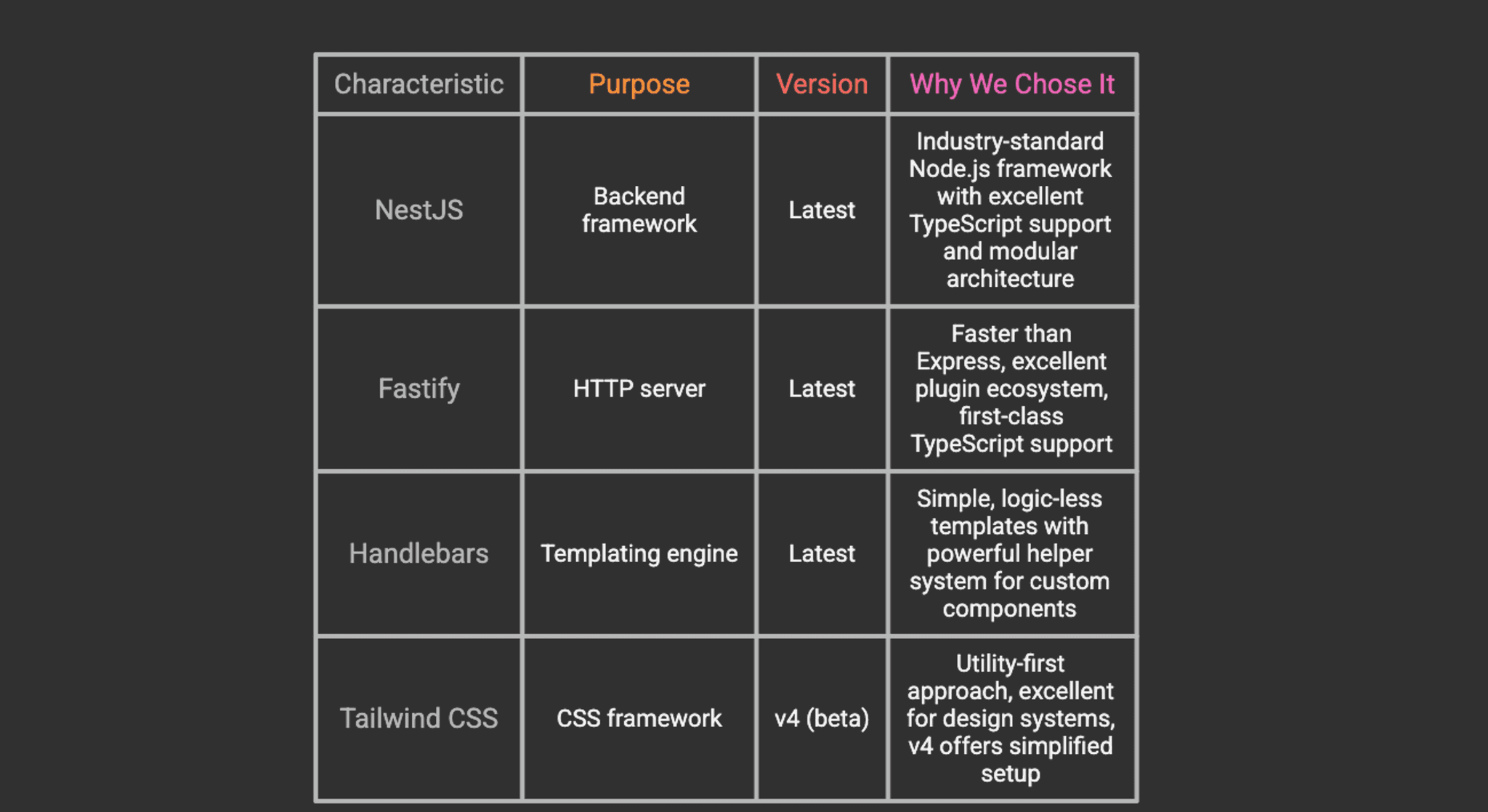
Our implementation uses a carefully selected stack that balances performance, developer experience, and maintainability.
Core Technologies
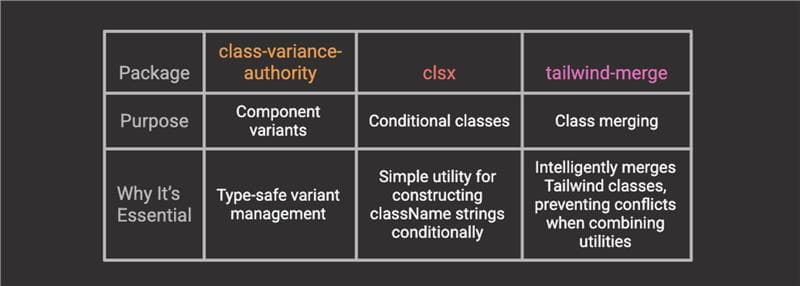
Styling Utilities
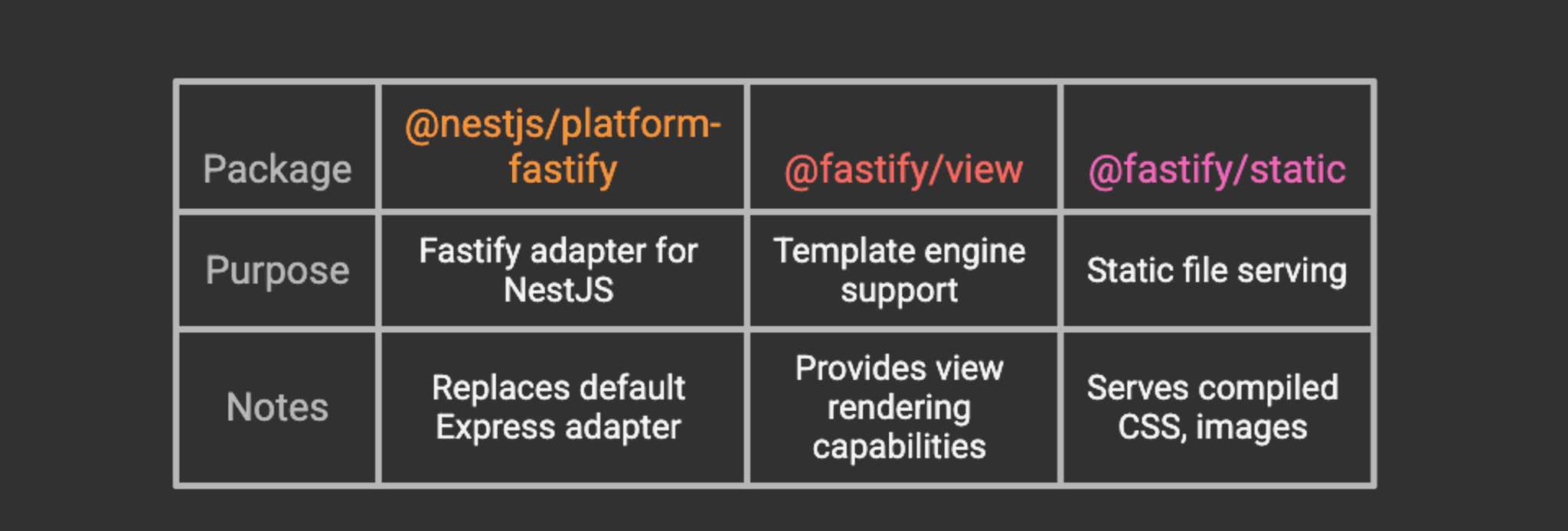
Integration Packages
[!TIP] Why Dev Dependencies?: The styling utilities (class-variance-authority, clsx, tailwind-merge) are installed as dev dependencies because they’re only needed at build time to generate CSS and component classes. They don’t need to ship the runtime bundle.
Architecture Overview
Understanding the high-level architecture will help you see how all the pieces fit together.
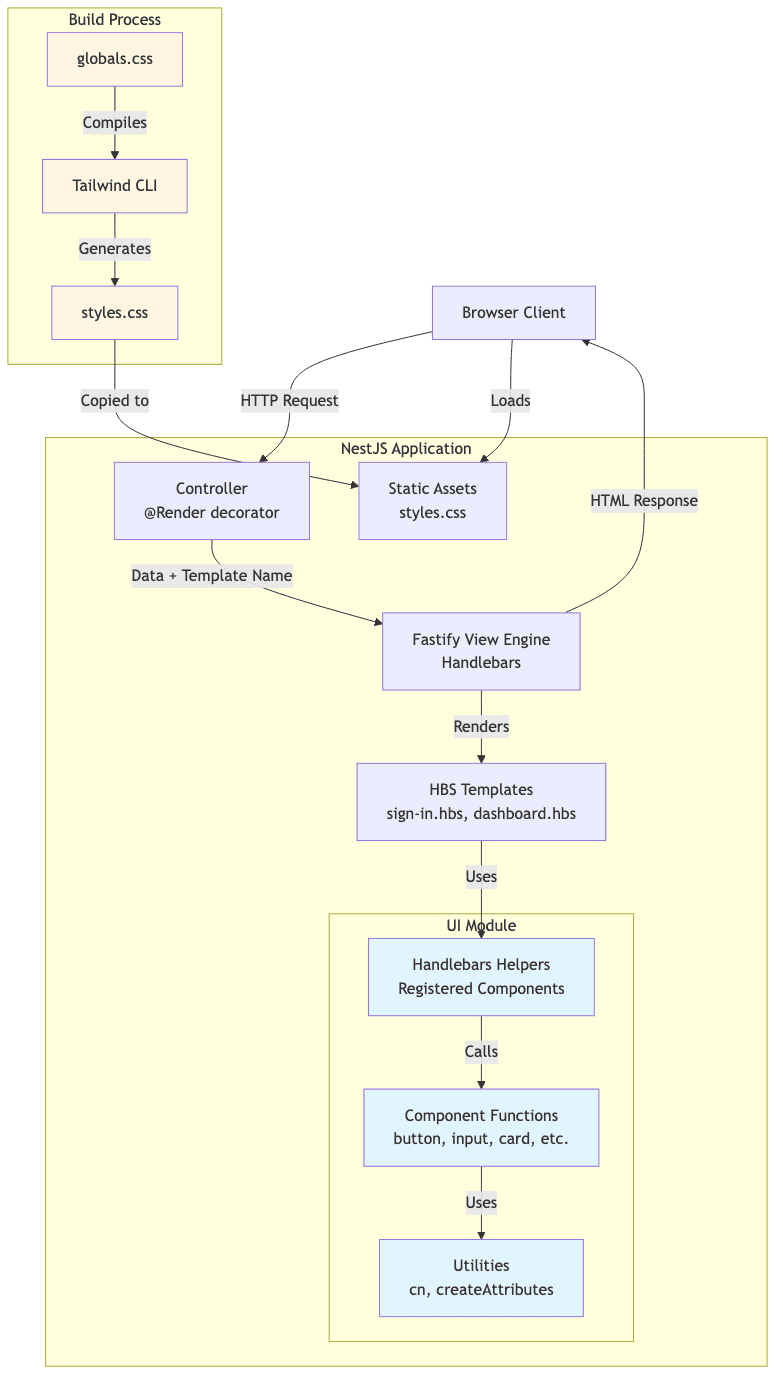
Request Flow
- Client Request: Browser requests a page (e.g., /auth/sign-in)
- Controller: NestJS controller handles the request, prepares data
- View Engine: Fastify’s view engine processes the Handlebars template
- Component Rendering: Template uses registered helpers (components)
- HTML Generation: Components return HTML strings with computed classes
- Response: Complete HTML page sent to client
- Asset Loading: Browser loads compiled CSS from static assets
Key Design Decisions
1. Components as Functions Returning Strings
Unlike React components that return JSX, our components are TypeScript functions that return HTML strings:
function createButton(props: ButtonProps): string {
const classes = cn(buttonVariants({ variant, size }), className);
return `<button class="${classes}" ${attributes}>${content}</button>`;
}This keeps them: - Framework-agnostic - Easy to test - Simple to port to React later
2. Handlebars Helpers as Component Interface
We register components as Handlebars helpers, providing a familiar API:
Handlebars.registerHelper(
'button',
function (options: Handlebars.HelperOptions) {
const props = (options?.hash as ButtonProps) || {};
// If used as a block helper, use the block content as children
if (options.fn) {
props.children = options.fn(this);
}
const html = createButton(props);
// Return SafeString to prevent HTML escaping
return new Handlebars.SafeString(html);
},
);
3. CVA for Variant Management
Using the same pattern as shadcn/ui and other modern component libraries:
const buttonVariants = cva(baseStyles, {
variants: {
variant: { primary: '...', secondary: '...' },
size: { sm: '...', md: '...', lg: '...' }
}
});
Step-by-Step Implementation
Let's build this system from the ground up.
Step 1: Create the NestJS Project
Start by creating a fresh NestJS project using the official CLI:
# Install NestJS CLI globally
npm install -g @nestjs/cli
# Create new project
nest new react-ssr-projectWhen prompted, choose your preferred package manager (npm, yarn, or pnpm). For this guide, we’ll use npm.
[!TIP] If you already have a NestJS project, you can skip this step and integrate the following changes into your existing codebase.
Step 2: Install Dependencies
Install the required packages for view rendering and styling:
# View engine and server dependencies
npm install @nestjs/platform-fastify @fastify/view @fastify/static handlebars
# Tailwind CSS v4 and styling utilities (dev dependencies)
npm install -D tailwindcss @tailwindcss/cli class-variance-authority clsx tailwind-merge
What each package does:
- @nestjs/platform-fastify – Fastify adapter for NestJS (replaces Express)
- @fastify/view – Template engine integration for Fastify
- @fastify/static – Serves static files (CSS, images, JavaScript)
- handlebars – Minimal, logic-less templating language
- tailwindcss – Core Tailwind CSS framework
- @tailwindcss/cli – Standalone CLI for compiling Tailwind
- class-variance-authority – Type-safe component variant management
- clsx – Utility for constructing className strings conditionally
- tailwind-merge – Intelligently merges Tailwind classes without conflicts
Step 3: Configure Fastify with Handlebars
Replace the default Express adapter with Fastify and configure the view engine.
Update src/main.ts:
import { NestFactory } from '@nestjs/core';
import {
FastifyAdapter,
NestFastifyApplication,
} from '@nestjs/platform-fastify';
import fastifyStatic from '@fastify/static';
import fastifyView from '@fastify/view';
import * as handlebars from 'handlebars';
import { join } from 'path';
import { AppModule } from './app.module';
async function bootstrap() {
// Create NestJS app with Fastify adapter
const app = await NestFactory.create<NestFastifyApplication>(
AppModule,
new FastifyAdapter(),
);
// Register static assets plugin
await app.register(fastifyStatic, {
root: join(__dirname, 'public'),
prefix: '/', // Assets accessible at root (e.g., /styles.css)
});
// Register Handlebars as the view engine
await app.register(fastifyView, {
engine: { handlebars },
root: join(__dirname, 'views'),
layout: 'layout.hbs', // Default layout wrapper
includeViewExtension: true, // Allows @Render('sign-in') instead of @Render('sign-in.hbs')
});
await app.listen(3000, '0.0.0.0');
console.log(`Application is running on: http://localhost:3000`);
}
bootstrap();[!NOTE] If you don’t have a layout.hbs file hasn't been created yet; you may want to temporarily comment out the layout option to avoid errors. We’ll create it in Step 10.
Configure Asset Copying
NestJS doesn’t copy arbitrary folders into the dist directory by default. Update nest-cli.json to include public, views, and secret-key file (more on this later):
{
"$schema": "https://json.schemastore.org/nest-cli",
"collection": "@nestjs/schematics",
"sourceRoot": "src",
"compilerOptions": {
"deleteOutDir": true,
"assets": [
{
"include": "../public",
"outDir": "dist/public",
"watchAssets": true
},
{
"include": "../views",
"outDir": "dist/views",
"watchAssets": true
},
{
"include": "../secret-key",
"outDir": "dist/secret-key",
"watchAssets": true
}
]
}
}This ensures that: - public/ → dist/public (CSS, images, etc.) - views/ → dist/views (Handlebars templates)
Step 4: Configure Tailwind CSS v4
Tailwind v4 dramatically simplifies the setup process with its new CLI-based approach.
Create the global CSS file
Create public/globals.css:
/* Import Tailwind's base styles */
@import 'tailwindcss';
/* Custom design tokens and utilities */
:root {
--radius-base: 0.5rem;
}
/* Custom utility classes */
.hover-lift {
@apply transition-transform duration-150 hover:-translate-y-0.5;
}
.hover-glow {
@apply transition-shadow duration-150 hover:shadow-lg;
}
.glass {
@apply bg-white/80 backdrop-blur-md;
}
.shadow-glow {
box-shadow: 0 0 20px rgba(59, 130, 246, 0.3);
}
/* Add your custom styles here */
Add build scripts
Update package.json to include Tailwind compilation scripts:
{
"scripts": {
"build:css": "npx @tailwindcss/cli -i ./public/globals.css -o ./public/styles.css",
"watch:css": "npx @tailwindcss/cli -i ./public/globals.css -o ./public/styles.css --watch"
}
}
Usage:
- npm run build:css – One-time build for production
- npm run watch:css – Watch mode for development (auto-recompiles on changes)
[!TIP] Development Workflow: Run npm run watch:css in a separate terminal window while developing. This automatically rebuilds your CSS whenever you change templates or add new Tailwind classes.
Step 5: Create the UI Module Structure
Following NestJS best practices, create a dedicated UI module to encapsulate all component-related code.
Your structure should look like this:
src/
├── ui/
│ ├── components/ # Reusable UI components
│ │ ├── button.ts
│ │ ├── input.ts
│ │ ├── card.ts
│ │ └── ... (more components)
│ ├── helpers/ # Handlebars helper registration
│ │ └── handlebars-helpers.ts
│ ├── utils/ # Shared utilities
│ │ └── utils.ts
│ └── ui.module.ts # UI feature module
Step 6: Create Utility Functions
Create src/ui/utils/utils.ts:
import { clsx, type ClassValue } from 'clsx';
import { twMerge } from 'tailwind-merge';
/**
* Combines class names and merges Tailwind classes intelligently
* Prevents conflicts when combining utility classes
*/
export function cn(...inputs: ClassValue[]) {
return twMerge(clsx(inputs));
}
/**
* Converts an attributes object to an HTML attributes string
* Handles boolean attributes correctly (e.g., disabled, required)
*/
export function createAttributesStringified(
attributes: Record<string, string | number | boolean | undefined | null>,
): string {
return Object.entries(attributes)
.filter(([, value]) => value !== undefined && value !== null)
.map(([key, value]) => {
// Boolean attributes (disabled, required, etc.)
if (typeof value === 'boolean') {
return value ? key : '';
}
// Regular attributes
return `${key}="${String(value)}"`;
})
.filter(Boolean)
.join(' ');
}
Why these utilities matter:
- cn() – Safely merges Tailwind classes, resolving conflicts (e.g., px-4 px-6 becomes px-6)
- createAttributesStringified() – Converts props to HTML attributes, handling edge cases like boolean attributes
Step 7: Create the Button Component
Create src/ui/components/button.ts:
import { cva, type VariantProps } from 'class-variance-authority';
import { cn, createAttributesStringified } from '../utils/utils';
/**
* Button variants using CVA (Class Variance Authority)
* Same pattern as shadcn/ui and other modern component libraries
*/
const buttonVariants = cva(
// Your custom button styles here
);
/**
* Button component props
* Extends VariantProps to get type-safe variant and size props
*/
export interface ButtonProps extends VariantProps<typeof buttonVariants> {
children?: string;
className?: string;
type?: 'button' | 'submit' | 'reset';
disabled?: boolean;
onClick?: string;
[key: string]: unknown; // Allow additional HTML attributes
}
/**
* Extracts HTML attributes from button props
*/
function getButtonAttributes(
props: ButtonProps,
): Record<string, string | boolean> {
const { variant, size, className, children, onClick, ...attributes } = props;
return {
...attributes,
...(onClick && { onclick: onClick }), // Convert camelCase to lowercase for HTML
...(props.disabled && { disabled: true }),
...(props.type && { type: props.type }),
};
}
/**
* Creates a button HTML string with computed classes and attributes
* This is the core component function that returns an HTML string
*/
export function createButton(props: ButtonProps): string {
const { variant, size, className, children, ...rest } = props;
// Compute final classes using CVA and cn utility
const classes = cn(buttonVariants({ variant, size }), className);
// Get HTML attributes
const attributes = getButtonAttributes(rest);
const attributesStringified = createAttributesStringified(attributes);
const content = children ?? '';
return `<button class="${classes}" ${attributesStringified}>${content}</button>`;
}
export { buttonVariants, createButton };
Key concepts:
- CVA for variants – Define all button styles in one place with type safety
- Props interface – TypeScript ensures correct usage
- String output – Component returns HTML string (not JSX)
- Composability – Can be extended with custom classes via className prop
[!TIP] You can create additional components following this same pattern: input, card, badge, avatar, kpi, etc. Check the GitHub repository for complete examples.
Step 8: Register Handlebars Helpers
Create src/ui/helpers/handlebars-helpers.ts:
import * as Handlebars from 'handlebars';
import { createButton, type ButtonProps } from '../components/button';
import { createInput, type InputProps } from '../components/input';
/**
* Registers all UI components as Handlebars helpers
* Called during module initialization
*/
export function registerHandlebarsHelpers(): void {
// Button helper with block support
Handlebars.registerHelper(
'button',
function (options: Handlebars.HelperOptions) {
const props = (options?.hash as ButtonProps) || {};
// If used as a block helper, use the block content as children
if (options.fn) {
props.children = options.fn(this);
}
const html = createButton(props);
// Return SafeString to prevent HTML escaping
return new Handlebars.SafeString(html);
},
);
// Input helper
Handlebars.registerHelper(
'input',
function (options: Handlebars.HelperOptions) {
const props = (options?.hash as InputProps) || {};
const html = createInput(props);
return new Handlebars.SafeString(html);
},
);
// Register additional component helpers (card, badge, avatar, etc.)
// See the GitHub repository for complete implementations
// Conditional helpers for template logic
Handlebars.registerHelper('eq', (a: unknown, b: unknown) => a === b);
Handlebars.registerHelper('ne', (a: unknown, b: unknown) => a !== b);
Handlebars.registerHelper('gt', (a: number, b: number) => a > b);
Handlebars.registerHelper('lt', (a: number, b: number) => a < b);
Handlebars.registerHelper('gte', (a: number, b: number) => a >= b);
Handlebars.registerHelper('lte', (a: number, b: number) => a <= b);
Handlebars.registerHelper('and', (a: unknown, b: unknown) => a && b);
Handlebars.registerHelper('or', (a: unknown, b: unknown) => a || b);
Handlebars.registerHelper('not', (a: unknown) => !a);
// String helper for avatars, initials, etc.
Handlebars.registerHelper(
'substring',
(str: string, start: number, end: number) => {
if (!str) return '';
return str.substring(start, end).toUpperCase();
},
);
}
Important concepts:
- Handlebars.SafeString – Prevents HTML escaping (required for rendering HTML)
- Block support (options.fn) – Allows nested content like {{#button}}...{{/button}}
- Conditional helpers – Enable logic in templates without JavaScript
Step 9: Create the UI Module
Create src/ui/ui.module.ts:
import { Module, OnModuleInit } from '@nestjs/common';
import { registerHandlebarsHelpers } from './helpers/handlebars-helpers';
@Module({})
export class UiModule implements OnModuleInit {
/**
* Register Handlebars helpers when the module initializes
* This runs once when the application starts
*/
onModuleInit(): void {
registerHandlebarsHelpers();
}
}
Import the UI module in your app module:
Update src/app.module.ts:
import { Module } from '@nestjs/common';
import { AppController } from './app.controller';
import { AppService } from './app.service';
import { UiModule } from './ui/ui.module';
@Module({
imports: [UiModule], // Import UI module
controllers: [AppController],
providers: [AppService],
})
export class AppModule {}
Step 10: Create View Templates
Create the layout template at views/layout.hbs:
<!DOCTYPE html>
<html lang='en'>
<head>
<meta charset='utf-8' />
<meta name='viewport' content='width=device-width, initial-scale=1' />
<title>{{title}}</title>
<link rel='stylesheet' href='/styles.css' />
</head>
<body class='bg-gray-50 text-gray-900'>
{{{body}}}
</body>
</html>
Create the sign-in page at views/sign-in.hbs:
<div class='min-h-screen flex items-center justify-center bg-gray-50'>
<div class='w-full max-w-md p-8 bg-white rounded-lg shadow-md'>
<h1 class='text-2xl font-bold mb-6 text-gray-900'>Sign In</h1>
{{! Demo credential buttons }}
<div class='mb-6 flex flex-wrap gap-3'>
{{#button
variant='outline'
size='lg'
type='button'
onClick="fillCredentials('admin@example.com', 'password123')"
className='flex-1 hover-lift'
}}
Admin
{{/button}}
{{#button
variant='outline'
size='lg'
type='button'
onClick="fillCredentials('user@example.com', 'password123')"
className='flex-1 hover-lift'
}}
User
{{/button}}
</div>
{{! Error message }}
{{#if error}}
<div
class='mb-4 p-3 bg-red-100 text-red-700 rounded border border-red-300'
>
{{error}}
</div>
{{/if}}
{{! Sign-in form }}
<form method='POST' class='space-y-4'>
<div class='flex flex-col gap-2'>
<label for='email' class='text-sm font-medium text-gray-700'>
Email
</label>
{{input
type='email'
id='email'
name='email'
required='true'
placeholder='Enter your email'
}}
</div>
<div class='flex flex-col gap-2'>
<label for='password' class='text-sm font-medium text-gray-700'>
Password
</label>
{{input
type='password'
id='password'
name='password'
required='true'
placeholder='Enter your password'
}}
</div>
<div class='pt-2'>
{{button
variant='default'
size='lg'
children='Sign In'
type='submit'
className='w-full'
}}
</div>
</form>
</div>
</div>
<script>
function fillCredentials(email, password) {
document.getElementById('email').value = email;
document.getElementById('password').value = password;
}
</script>
Step 11: Create Controllers
Create the auth module with the auth controller src/auth/controllers/auth.controller.ts:
import { Body, Controller, Get, Post, Render, Redirect } from '@nestjs/common';
interface SignInDto {
email: string;
password: string;
}
@Controller('auth')
export class AuthController {
@Get('/sign-in')
@Render('sign-in')
getSignIn() {
return {
title: 'Sign In',
error: null,
};
}
@Post('sign-in')
@Render('sign-in')
signIn(@Body() body: SignInDto) {
const { email, password } = body;
// In production: set session/cookie and redirect to dashboard
// For now, just show success (you'd typically redirect here)
return {
title: 'Sign In',
error: null,
};
}
@Post('logout')
@Redirect('/auth/sign-in')
logout() {
// TODO: Clear session/cookie
return;
}
}
Create src/auth/auth.module.ts:
import { Module } from '@nestjs/common';
import { AuthController } from './controllers/auth.controller';
@Module({
controllers: [AuthController],
})
export class AuthModule {}
Update src/app.module.ts to import the auth module:
import { Module } from '@nestjs/common';
import { AppController } from './app.controller';
import { AppService } from './app.service';
import { AuthModule } from './auth/auth.module';
import { UiModule } from './ui/ui.module';
@Module({
imports: [UiModule, AuthModule],
controllers: [AppController],
providers: [AppService],
})
export class AppModule {}
Running the Application
Now let's see it in action!
1. Build the CSS:
npm run build:css
2. Start the development server:
npm run start:dev
3. (Optional) Watch CSS in a separate terminal:
npm run watch:css
4. Visit the sign-in page:
Open your browser to http://localhost:3000/auth/sign-in
You should see a beautifully styled sign-in page with: - Two demo credential buttons - Email and password inputs - A submit button - All styled with Tailwind CSS - All using your reusable components
Advanced Patterns
Nested Components
Nested Components
One of the most powerful features is component composition. You can nest components just like in React:
{{#card variant='gradient' padding='lg' className='border-2 border-purple-200'}}
{{#cardHeader}}
<div class='flex items-start gap-4'>
<div class='flex-1'>
{{#cardTitle}}Admin Controls{{/cardTitle}}
{{#cardDescription}}System administration and management{{/cardDescription}}
</div>
</div>
{{/cardHeader}}
{{#cardContent}}
<div class='grid grid-cols-1 md:grid-cols-3 gap-4 mt-4'>
{{button variant='outline' children='Manage Users' type='button'}}
{{button variant='outline' children='System Settings' type='button'}}
{{button variant='outline' children='View Analytics' type='button'}}
</div>
{{/cardContent}}
{{/card}}
Conditional Rendering
Use the registered conditional helpers for dynamic content:
{{#if (eq user.email 'admin@example.com')}}
{{badge variant='secondary' children='Admin'}}
{{/if}}
{{#if (gt stats.revenue 10000)}}
<div class='text-green-600'>Revenue goal met!</div>
{{/if}}
{{#if (or user.isAdmin user.isModerator)}}
{{button variant='destructive' children='Delete User'}}
{{/if}}
Custom Helpers for Complex Logic
For more complex scenarios, create custom helpers:
// In handlebars-helpers.ts
Handlebars.registerHelper('formatCurrency', (amount: number) => {
return new Intl.NumberFormat('en-US', {
style: 'currency',
currency: 'USD',
}).format(amount);
});
Handlebars.registerHelper('formatDate', (date: string) => {
return new Date(date).toLocaleDateString('en-US', {
year: 'numeric',
month: 'long',
day: 'numeric',
});
});
Usage in templates:
<p>Total: {{formatCurrency revenue}}</p>
<p>Last login: {{formatDate user.lastLogin}}</p>
Comparison with React
Let's compare our backend component approach with React to understand the similarities and differences.
Similarities
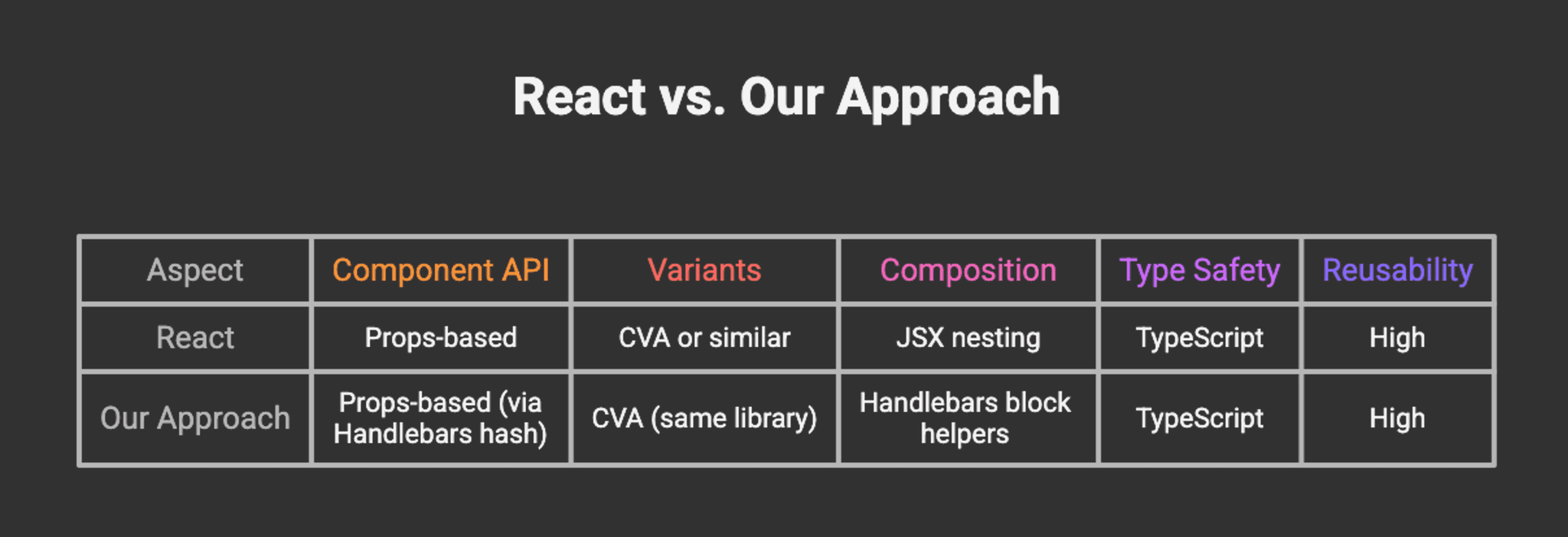
Differences
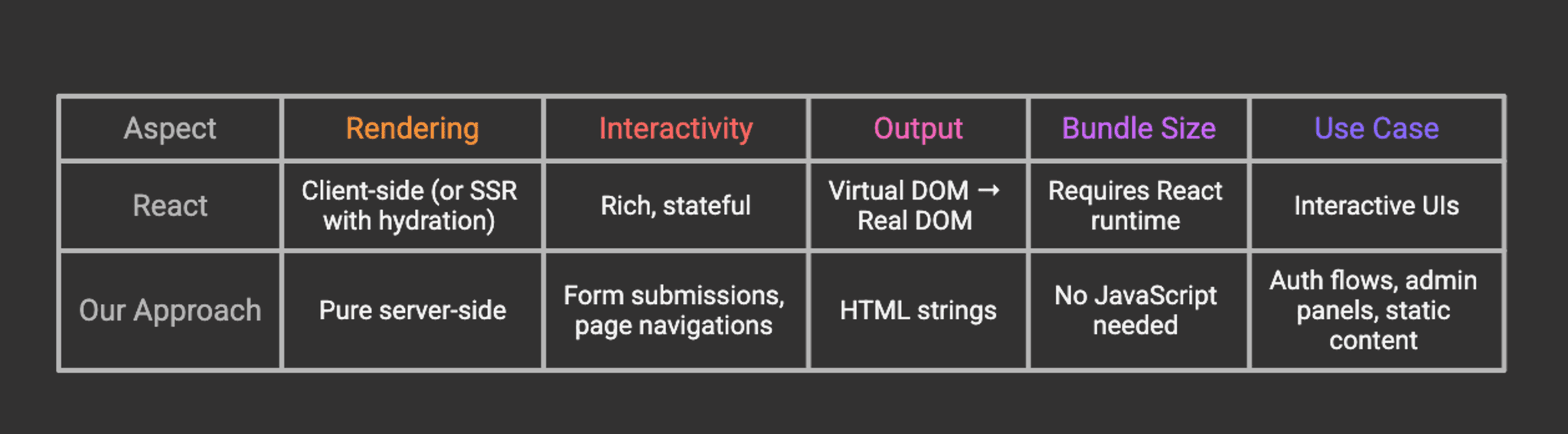
When to Use Each
Use React (or similar) when: - Building highly interactive UIs (dashboards, editors, etc.) - Need client-side state management - Require real-time updates - Building single-page applications (SPAs)
Use our SSR approach when: - Building authentication flows - Creating admin panels with simple interactions - Need fast initial page loads - SEO is critical - Want to minimize JavaScript bundle size - Progressive enhancement is a priority
Migration Path
One of the benefits of this approach is that it’s easy to migrate to React later:
Shared Design System: Your CVA variants can be copied directly to React components
Same API: Props structure is nearly identical
Gradual Migration: Start with SSR, add React for interactive parts
Hybrid Approach: Use SSR for auth, React for dashboard
Example migration:
// Backend component (current)
export function createButton(props: ButtonProps): string {
const classes = cn(buttonVariants({ variant, size }), className);
return `<button class="${classes}">${children}</button>`;
}
// React component (future)
export function Button({ variant, size, className, children, ...props }: ButtonProps) {
return (
<button className={cn(buttonVariants({ variant, size }), className)} {...props}>
{children}
</button>
);
}The variant definitions and utility functions remain identical!
Performance Considerations
Server-Side Rendering Benefits
- Faster First Contentful Paint (FCP)
- HTML is rendered on the server
- No JavaScript parsing required for initial render
- Especially beneficial on slower devices
2. Reduced Bundle Size
- No React runtime
- No hydration code
- Only CSS and minimal JavaScript for interactions
3. Better SEO
- Content is immediately available to crawlers
- No JavaScript execution required
- Faster indexing
4. Highly cacheable by browsers and CDNs
- Static HTML responses can be cached effectively
- CDNs can serve cached content closer to users
- Reduces server load and improves response times
- Works well with HTTP caching headers (Cache-Control, ETag)
[!WARNING] Cache Headers: Incorrectly configured cache headers can be dangerous. Avoid caching sensitive pages (e.g., user-specific content) or use appropriate cache-control directives. Public caching of private data can create security vulnerabilities, allowing one user’s data to be served to another.
Optimization Tips
1. CSS Optimization
# Production build with minification
npx @tailwindcss/cli -i ./public/globals.css -o ./public/styles.css --minify
2. Caching
Enable caching for static assets:
await app.register(fastifyStatic, {
root: join(__dirname, 'public'),
prefix: '/',
maxAge: '1y', // Cache for 1 year
immutable: true,
});
3. Template Caching
Handlebars automatically caches compiled templates in production. Ensure you’re running in production mode:
NODE_ENV=production npm run start:prod
4. Compression
Add compression for responses:
npm install @fastify/compress
import fastifyCompress from '@fastify/compress';
await app.register(fastifyCompress);
Security Best Practices
When building authentication flows with SSR, security is paramount.
1. CSRF Protection
Install CSRF protection:
npm install @fastify/csrf-protection
Configure it:
import fastifyCsrf from '@fastify/csrf-protection';
await app.register(fastifyCsrf);Use in forms:
<form method='POST'>
<input type='hidden' name='_csrf' value='{{csrfToken}}' />
{{! ... rest of form }}
</form>
2. Session Management
Use secure session handling:
npm install @fastify/secure-session
Create a secret-key file using:
npx --yes @fastify/secure-session > secret-key
import fastifySecureSession from '@fastify/secure-session';
// 0. Register secure session plugin (must be before other plugins)
await app.register(fastifySecureSession, {
key: fs.readFileSync(path.join(__dirname, 'secret-key')),
sessionName: 'session',
cookieName: 'my-session-cookie',
expiry: 24 * 60 * 60, // 1 day
cookie: {
path: '/',
httpOnly: true,
secure: process.env.NODE_ENV === 'production',
sameSite: 'lax',
maxAge: 60 * 60 * 24 * 7, // 7 days
},
});
3. Input Validation
Use class-validator for DTO validation:
npm install class-validator class-transformer
import { IsEmail, MinLength } from 'class-validator';
export class SignInDto {
@IsEmail()
email: string;
@MinLength(8)
password: string;
}
4. Rate Limiting
Protect against brute force attacks:
npm install @fastify/rate-limit
import fastifyRateLimit from '@fastify/rate-limit';
await app.register(fastifyRateLimit, {
max: 5, // 5 requests
timeWindow: '1 minute', // per minute
});
5. Helmet for Security Headers
npm install @fastify/helmet
import fastifyHelmet from '@fastify/helmet';
await app.register(fastifyHelmet);
Troubleshooting
Common Issues and Solutions
1. Tailwind Styles Not Loading
Symptoms: Page renders but has no styling
Solutions: - Ensure npm run build:css has been run - Check that /styles.css is accessible: http://localhost:3000/styles.css - Verify <link rel="stylesheet" href="/styles.css" /> is in layout.hbs - Confirm public/ directory is being copied to dist/public/ (check nest-cli.json)
2. Handlebars Helpers Not Working
Symptoms: {{button}} renders as text or throws error
Solutions: - Confirm registerHandlebarsHelpers() is called in UiModule.onModuleInit() - Check that UiModule is imported in AppModule - Verify helper names match between registration and template usage - Check browser console for JavaScript errors
3. Components Rendering as Escaped HTML
Symptoms: You see <button class="..."> as text in the browser
Solutions: - Ensure helpers return new Handlebars.SafeString(html) - Use {{{triple}}} braces if manually rendering (but not needed with SafeString) - Check that you’re not accidentally escaping in the component function
4. Layout Not Found Error
Symptoms: Error: ENOENT: no such file or directory, open '.../views/layout.hbs'
Solutions: - Create views/layout.hbs file - Or comment out layout: 'layout.hbs' in main.ts temporarily - Verify views/ directory is being copied to dist/views/
5. Fastify Plugin Registration Errors
Symptoms: Errors about plugin registration order
Solutions: - Register plugins in correct order: static → view → other plugins - Use await for all app.register() calls - Check plugin compatibility with Fastify version
6. TypeScript Compilation Errors
Symptoms: Build fails with type errors
Solutions: - Ensure all dependencies are installed: npm install - Check TypeScript version compatibility - Verify @types/node is installed - Clear build cache: rm -rf dist && npm run build
Conclusion
By completing this guide, you have successfully architected a robust server-side rendering system that bridges the gap between traditional backend templating and modern component-based design. You have moved beyond simple HTML generation to create a structured, type-safe environment where UI components are first-class citizens.
Instead of relying on heavy client-side frameworks for every interaction, you have implemented a lightweight, performance-first solution that delivers content to users instantly. You have established a scalable pattern using NestJS and Handlebars that mimics the best parts of the React ecosystem composability, prop interfaces, and variant management without the associated runtime cost. This architecture provides a solid foundation for building content-heavy applications where SEO, initial load performance, and maintainability are paramount.
Next Steps
1. Expand Your Component Library - Create more primitives: card, badge, avatar, table - Build composite components: navbar, sidebar, modal - Add form components: select, checkbox, radio
2. Add Real Authentication - Integrate Passport.js or similar - Implement JWT or session-based auth - Add OAuth providers (Google, GitHub, etc.)
3. Build a Dashboard - Create data visualization components - Add role-based access control
Further Reading
Official Documentation: - NestJS Documentation – Comprehensive guide to NestJS - Fastify Documentation – High-performance web framework - Handlebars Guide – Templating language reference - Tailwind CSS – Utility-first CSS framework - CVA Documentation – Class Variance Authority
Example Repository: - ReactSSR GitHub Repository – Complete source code with examples
Acknowledgement
This approach was inspired by: - shadcn/ui – For the CVA pattern and component API design - React – For the component model and composition patterns - NestJS community – For excellent documentation and examples - Tailwind CSS – For making utility-first CSS practical
Thank you for reading! If you found this helpful, consider: - Starring the GitHub repository - Sharing your experience and improvements - Reporting issues or suggesting enhancements
Happy coding!